
How to use guest mode on Android to protect data.
Digital security has become an undeniable priority in the daily lives of those who use smartphones to manage personal and banking data.
Adverts
When lending your device to friends, colleagues, or family members, there is an imminent risk of unwanted exposure of photos, private messages, and financial applications.
Given this common scenario, learning to Use guest mode on Android. It emerges as a native, practical, and highly effective solution to protect your privacy.
This feature creates a completely isolated temporary profile, preventing third parties from accessing your configured accounts, browsing history, or files saved in the main storage.
The feature acts as a robust protective barrier, ensuring that the owner maintains complete control over what can be viewed.
advertising
Using this Google operating system tool prevents headaches and immediately reinforces the security of your information.
With the advancement of system updates, this tool has become even more fluid, intuitive, and integrated with modern mobile usability guidelines.
In this comprehensive article, you will gain a detailed understanding of how this technology works, learn the step-by-step process for its activation, and discover advanced security tips.
Below, check out the main summary with the topics covered to facilitate your reading and dynamic navigation.
Article Summary
- What is the visitor profile in the Google ecosystem?
- How do I activate the step-by-step feature on my smartphone?
- What data remains protected while using this feature?
- Technical comparison of privacy between system profiles.
- Frequently asked questions about managing secondary profiles.
What is the visitor profile in the Google ecosystem?
Google's mobile operating system has developed a software architecture capable of segmenting storage into multiple independent virtual environments.
This engineering allows the device owner to create a clean parallel session, without any link to the phone's main credentials.
When we decide Use guest mode on Android.The system generates a temporary space that emulates a brand new, straight-out-of-the-box device.
This secondary account does not have access to your call history, SMS messages, gallery photos, or passwords saved in your browser.
The visitor only sees the system's native applications that come pre-installed from the factory, without any previously connected Google account.
It is an insurmountable digital wall that protects the identity of the cell phone owner from snoopers or operational accidents.
Unlike creating a new permanent user, this profile is designed for quick interactions, allowing for the immediate deletion of all generated data.
Once the session ends, photos taken, search histories, and files downloaded by the visitor are permanently removed from storage.
This volatility provides a superior level of biometric and logical security for those who routinely share the hardware.
How do I activate the step-by-step feature on my smartphone?
The activation of this protection layer varies subtly depending on the manufacturer's interface, but follows a universal logic across the software ecosystem.
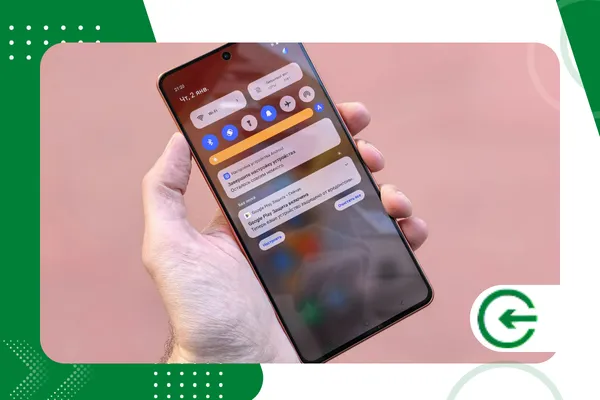
To begin the process, swipe down twice in the notification bar to open the quick settings panel.
Look for the user icon, usually represented by a humanoid avatar located at the bottom or top of the mobile screen.
Tap this icon to easily open the profile management menu available on your updated device.
Select the option corresponding to the visitor so that the operating system initiates the secure transition between existing virtual environments.
The smartphone will display a brief loading screen while isolating its main information and preparing the new clean interface.
If the icon is not visible in the quick settings, access the main system settings menu on your mobile device.
Navigate to the option called “System” and then tap on “Multiple users” to manually enable the feature on the screen.
Make sure to enable the master key to allow the shortcut to appear directly in the top notification panel.
What data remains protected while using this feature?
The main advantage of Use guest mode on Android. It resides in the cryptographic isolation that the system imposes on the main user's data.
Instant messaging applications like WhatsApp and Telegram become completely inaccessible, requiring a complete overhaul if the visitor attempts to open them.
Your social media accounts remain disconnected, ensuring that no one posts content or reads private conversations without your explicit permission.
Banking apps and digital wallets require two-factor authentication and do not share session data between profiles created in the operating system.
Your photos, videos, downloaded documents, and screenshots are stored in an encrypted memory partition that is completely invisible to visitors.
Even when connecting the phone to a computer via USB cable, the owner's main files remain hidden and protected.
Even Wi-Fi network settings and Bluetooth pairing may be restricted, depending on the specific version of your operating system.
The visitor can browse the internet, but will not be able to view the passwords for the networks saved in their main administrator profile.
This structural separation transforms the smartphone into a highly secure, multifunctional environment for casual, everyday sharing.
What are the differences between a secondary user and a visitor?
Understanding the difference between the types of accounts available in the system avoids confusion when managing mobile phone storage.
The secondary user profile functions as a permanent space, ideal for close relatives who use the device on a weekly basis.
It keeps downloaded apps, chosen wallpapers, and connected accounts even after the screen is locked.
On the other hand, the visitor profile is ephemeral in nature, being designed for quick loans of a few minutes or hours at a time.
It allows the administrator to delete all modifications made with a single tap, instantly freeing up space in the internal memory.
To better understand the technical details of each mode, please consult the official support page. Android Helpwhich details these guidelines.
The choice between the two options depends entirely on the level of trust and the amount of time the third party will spend using the hardware.
For strangers or children who just want to play, the volatile option is always the most recommended by security experts.
This strategic decision saves hardware processing power and keeps the organization of your personal files always intact and under control.
Technical comparison of privacy between system profiles.
The table below presents a detailed analysis of permissions and data isolation levels across different account types.
The data reflects the standard behavior of the operating system in its most recent mobile information security updates.
+ Tools for compressing large files on your mobile phone.
| System Resource or Data | Administrator Profile | Secondary User Profile | Temporary Guest Profile |
| Access to Owner Photos | Full Permission | Completely Blocked | Completely Blocked |
| Banking Apps | Free Access | Requires new installation. | Requires new installation. |
| SMS and Call History | Full Permission | Blocked by Default | Always Blocked |
| Data Persistence | Permanent | Permanent | Volatile / Disposable |
| Installing New Apps | Allowed | Allowed via Google Play | Allowed (Deleted on Exit) |
How do I log out and return to my main profile safely?
After someone else has finished using your smartphone, regaining control securely requires just a few on-screen commands.
Slide the notification bar down again to access the active users menu at the top of the main panel.
Tap the icon corresponding to the active profile and select the option to remove or log out of the visitor's current session.
The system will display a warning asking if you want to delete the information from that specific session before returning to the beginning.
Confirm the deletion to ensure that no browsing history or downloaded files remain occupying space in the device's memory.
The smartphone will ask for your registered password, pattern, or fingerprint to securely unlock the main administrator profile.
This biometric validation mechanism prevents the guest from attempting to switch back to their account without their presence.
The transition happens quickly, restoring all your open apps, pending notifications, and personalized settings exactly as they were.
This cycle completes the protection loop, demonstrating the practical efficiency of this native tool designed for modern daily life.
+ How to use to-do list apps with collaborative features
Where is guest mode located on Android?
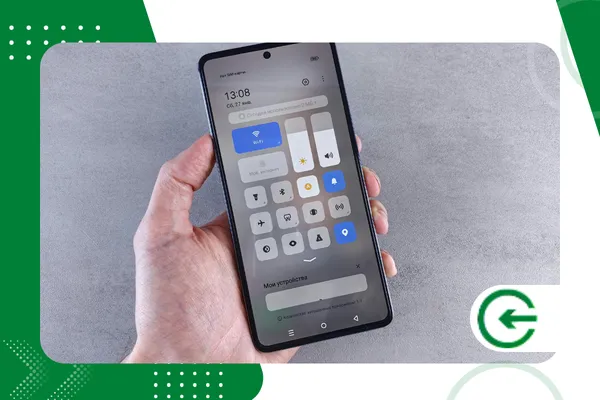
The exact location of the feature depends directly on the user interface developed by your mobile device manufacturer.
On devices that use a cleaner operating system, such as those in the Google Pixel and Motorola lines, access is direct through the notification panel. Simply swipe down twice from the top of the screen and tap the profile icon.
For users of Samsung devices that utilize the One UI interface, this dynamic changes, as the manufacturer often hides or renames multi-user functions in some models.
In these cases, the path requires opening the global settings, scrolling to the "Accounts and Backup" or "Security" menu, and looking for profile management.
If you can't find it, you can use the internal search bar in the settings by typing "users".
In other brands like Xiaomi (MIUI/HyperOS), the software engineering adopts a parallel concept known as "Second Space".
Although the terminology differs from that used by the standard Google ecosystem, the practical objective remains exactly the same.
The system creates an isolated partition in memory, requiring a different password or fingerprint to switch between virtual worlds.
Which apps are available for the guest to use?
When starting the temporary environment, the user is presented with the operating system's native applications that were pre-installed.
Official internet browsers, calculator, clock, camera, and basic media players are fully accessible for immediate use.
This initial selection allows the third party to perform essential tasks without having to invade the owner's personal space.
Social media and messaging apps downloaded to your main account will not appear in the visitor's app drawer.
If the guest needs to use a specific app that isn't on the native list, they will need to log in to their own Google Play account.
Any and all installations performed in this environment are restricted to it and do not mix with your programs.
This separation ensures that the device's performance is not compromised by excessive downloads made by third parties during the loan period.
The system's storage manages files in such a way that when the profile is closed, all new applications disappear.
The smartphone returns to its original organized state, saving you the trouble of manually uninstalling each item.
+ Tools to optimize storage space on Android and iPhone phones.
Conclusion
Protecting digital privacy has become a constant challenge in a hyper-connected society, where we store our entire lives on mobile devices.
Learn to Use guest mode on Android. It represents one of the most efficient and accessible barriers against accidental leaks of personal information.
The ease of activation combined with complete file isolation makes this feature indispensable for any tech-savvy user.
Adopting this practice eliminates the discomfort of denying someone the device, offering a clean and fully functional environment for its use.
Digital security doesn't require complex tools, but rather the intelligent use of resources that technology companies natively provide.
By transforming this action into a habitable feature, you significantly increase the level of protection for your strategic, everyday data.
To deepen your knowledge of security on mobile platforms and systems architecture, it's worth checking out the technical articles from [website/source]. Google Safety Center, a global leader in data protection.
Keep your operating system up-to-date and utilize native mechanisms to ensure a smooth and vulnerability-free digital experience.
Share this knowledge with friends and family to spread safe technology use practices within your social circle.
Frequently Asked Questions (FAQ)
Does guest mode drain your phone's battery faster?
There is no noticeable energy consumption, as the system only manages software permissions without duplicating active hardware processes.
The impact on battery life is equivalent to normal daily use of the device by any average user.
Can the visitor make regular phone calls?
By default, the function to make and receive regular phone calls is disabled for temporary profiles in the operating system.
The main administrator can manually grant this permission in the user settings, if deemed necessary at the moment.
How many visitor profiles can I create simultaneously?
The operating system allows only one visitor profile at a time in the device's internal storage.
If someone else needs to use the phone later, the previous session must be completely deleted to start a new one.
Do the apps installed by the guest take up space on my phone?
Yes, any app downloaded during the temporary session will temporarily use the available internal storage space on the device.
However, this space is completely freed up as soon as the administrator ends the session and commands the deletion of the data.
