
How to apply professional color grading to your cell phone easily.
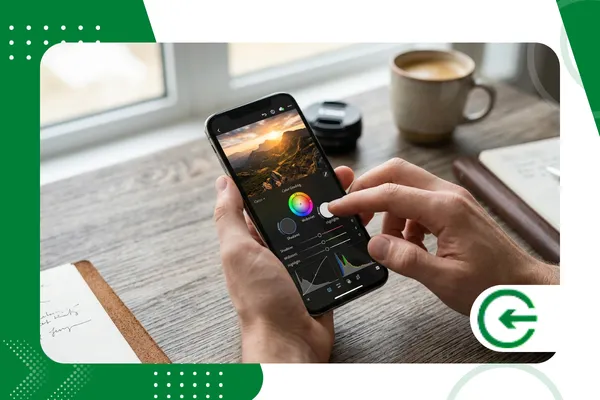
Mastering the Professional color grading on your mobile phone. It has gone from being a simple editing trick to becoming the watershed moment between those who merely record moments and those who truly construct a powerful visual narrative.
Adverts
This isn't about applying layers of ready-made filters that sanitize reality; true technique demands a clinical eye for light and color. In this guide, we'll deconstruct the process of advanced color manipulation so you can achieve cinematic results without needing a computer.
Below, we've outlined the path for you to understand the tools and, most importantly, the logic behind each adjustment.
Summary
- The subtle line between correcting and styling.
- Elite tools: where hardware meets software
- The psychology of color in practice.
- Practical application guide
- Technical data: formats and depth
- Where most people go wrong
- FAQ
The subtle line between correcting and styling.
Before any artistic intervention, there's a crucial step: color correction. This is where you adjust the white balance and exposure so that the image "breathes" naturally.
O Professional color grading on your mobile phone. It's what comes next, being purely intentional. It's the moment when you decide whether that shadow should be slightly bluish to convey coolness or whether the mid-tones will gain a nostalgic warmth.
advertising
If you try to stylize a photo that is still underexposed or has blown-out whites, the result will be a digital disaster. Technique first, art later.
Elite tools: where hardware meets software
By 2026, the barrier between mobile and desktop is almost invisible. Modern applications now process raw data with a fidelity that until recently was restricted to post-production studios.
Adobe Lightroom Mobile remains the safe haven for those seeking the triple "Color Grading" panel, allowing for precise, isolated control over shadows and highlights.
The psychology of color in practice.
A common mistake is thinking that beautiful colors appear by chance. In fact, the Professional color grading on your mobile phone. High-level performance always relies on the harmonies of the color wheel.
When applying the "Teal and Orange" color scheme, for example, you are using complementary colors to create a physical separation between the subject and the environment, something that the human brain interprets as depth.
If the goal is a more understated or documentary aesthetic, analogous color harmonies work best, creating a smooth transition between tones that doesn't overwhelm the viewer's eye.
Practical application guide
Always start by cleaning up the histogram. Ensure that the blacks have depth without losing detail and that the highlights are not harsh on the eyes, creating a neutral base.
The next step is HSL adjustment. It's fascinating how slightly changing the hue of a green to something drier can transform a garden photo into a melancholic autumn scene.
Apply the Professional color grading on your mobile phone. Using color wheels, try injecting shades of blue into the shadows and a soft amber into the highlights to create the classic color contrast of cinema.
Refine the transitions with luminance masks. This technique allows you to change the color of the sky, for example, without that adjustment "bleeding" into your model's skin tone.
Finally, add a minimal layer of grain. This helps mask any imperfections from the digital compression and gives the image an organic, almost analog texture that the human eye loves.
+ How to upscale images with AI without losing quality.
Technical data: formats and depth
Understand that the success of your Professional color grading on your mobile phone. It depends directly on the "raw material". Editing a compressed file is like trying to sculpt in dry sand.
+ How to create HDR effect on your phone without professional apps.
| Format | Depth | Post-Production Capability | User Profile |
| JPEG | 8-bit | Very limited (generates artifacts) | Casual / Instant |
| HEIF | 10-bit | Moderate (good for HDR) | Enthusiast |
| ProRAW | 12-bit | Excellent (retains sensor data) | Professional Mobile |
| TIFF | 16-bit | Maximum (without compression) | Critical Archiving |
Technical precision resides in the curves.
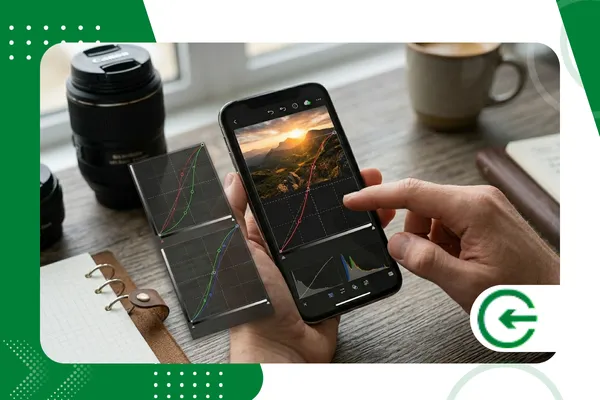
Many users ignore the curve graph for fear of its complexity, but it is there that the real secret to a balanced image with its own identity lies.
Manipulate the Professional color grading on your mobile phone. Using curves allows you to create that trendy "washed-out" black, or to protect skin tones while you saturate the rest of the scene.
Learning how to read a vectorscope is also essential. It works like a visual compass, indicating if you've overdone it on any particular channel and ensuring consistent results across all screens.
The screen brightness trap
It's a classic mistake: you edit a photo with your phone's brightness at maximum, and when you view it on another device, the image looks dark and lifeless. Calibration is everything.
For one Professional color grading on your mobile phone. To ensure reliability, disable night mode and automatic color adjustment in the system. Always edit in a well-lit environment.
This prevents your device's software from "tricking" your eyes, ensuring that the colors you see on the screen are the same as those your followers will see when they open the post.
Light as the basis of digital pigment.
No editing tool can replace a good shot. If the original lighting is "poor," the color in post-production will look artificial, like a poorly done painting on a cracked wall.
O Professional color grading on your mobile phone. It shines when you take advantage of side lighting or the soft glow of cloudy days, which offer a much richer transition of tones to work with.
Planning the color palette before even pressing the shutter saves hours of editing and ensures that the final visual style looks like a deliberate choice, not a digital patch.
+ Tools for transforming photos into digital art.
Preserving the skin's natural appearance.
The biggest challenge for a colorist is maintaining realistic human skin tones while altering the entire surrounding color spectrum. It's easy to end up turning people into orange wax statues.
When performing the Professional color grading on your mobile phone.Use color range selection tools to isolate the subject. Protect the reds and oranges that make up the skin.
This separation ensures that, even if you decide to leave the scene completely stylized, the person in the photo continues to look real, maintaining the emotional connection that is essential for any good photograph.
Final Reflection
Mastering color in the mobile environment is liberating. The cell phone has ceased to be merely a communication accessory and has become a creative laboratory capable of producing complex aesthetics.
When applying the Professional color grading on your mobile phone.In this way, you take full control over the atmosphere of your work. Color ceases to be a geographical accident and becomes a narrative tool.
For those who wish to explore more about the science behind lenses, the portal DPReview It offers in-depth technical analyses that help you understand how light is processed even before it reaches your editor.
FAQ – Frequently Asked Questions
Does grading ruin the photo resolution?
If you're editing a 12-bit RAW file, no. However, in JPEG files, heavy color adjustments can cause "banding," those strange streaks in sky gradients.
Are LUTs recommended?
LUTs are great starting points, but they're rarely the end point. Use them as a base and adjust the opacity so that the... Professional color grading on your mobile phone. Don't look artificial.
What's the best app for beginners?
Snapseed is excellent for learning basic concepts, but for those seeking professional color control, Lightroom Mobile is unbeatable due to the precision of its selectors.
Why do my photos look different on Instagram?
Social media platforms apply aggressive compression. One tip is to always export in the sRGB color space and avoid extreme saturations, which Instagram's algorithm tends to distort.
Is it possible to do video grading on a mobile phone?
Absolutely. Apps like LumaFusion and DaVinci Resolve for iPad have brought the cinematic workflow to your pocket, allowing for real-time color grading.
