
Is it worth using an external monitor with a laptop?
If your routine depends on a laptop, using an external monitor with the laptop It is often the turning point between working in an improvised manner and structuring a truly productive workflow.
ADVERTISING
The integrated display is a lifesaver on the go, but spending eight hours a day squeezing tabs on a 14-inch screen takes a heavy toll on your eyesight and your patience. The physics of the small screen simply doesn't forgive.
Investing in an extra panel scares those who only look at the immediate credit card bill, but the math quickly adds up when we weigh the space gain and physical comfort.
Before pulling out your credit card, it's worth understanding which connections work best, how ergonomics changes your day, and where the real return on investment lies.
Summary
- What are the main practical benefits of expanding the screen?
- How do ergonomics and visual health improve with a second monitor?
- What connections and cables are needed to turn on the monitor?
- How do you compare the investment between additional screens and larger laptops?
- What type of external screen is ideal for your usage profile?
- Conclusion
- Frequently Asked Questions (FAQ)
What are the main practical benefits of expanding the screen?
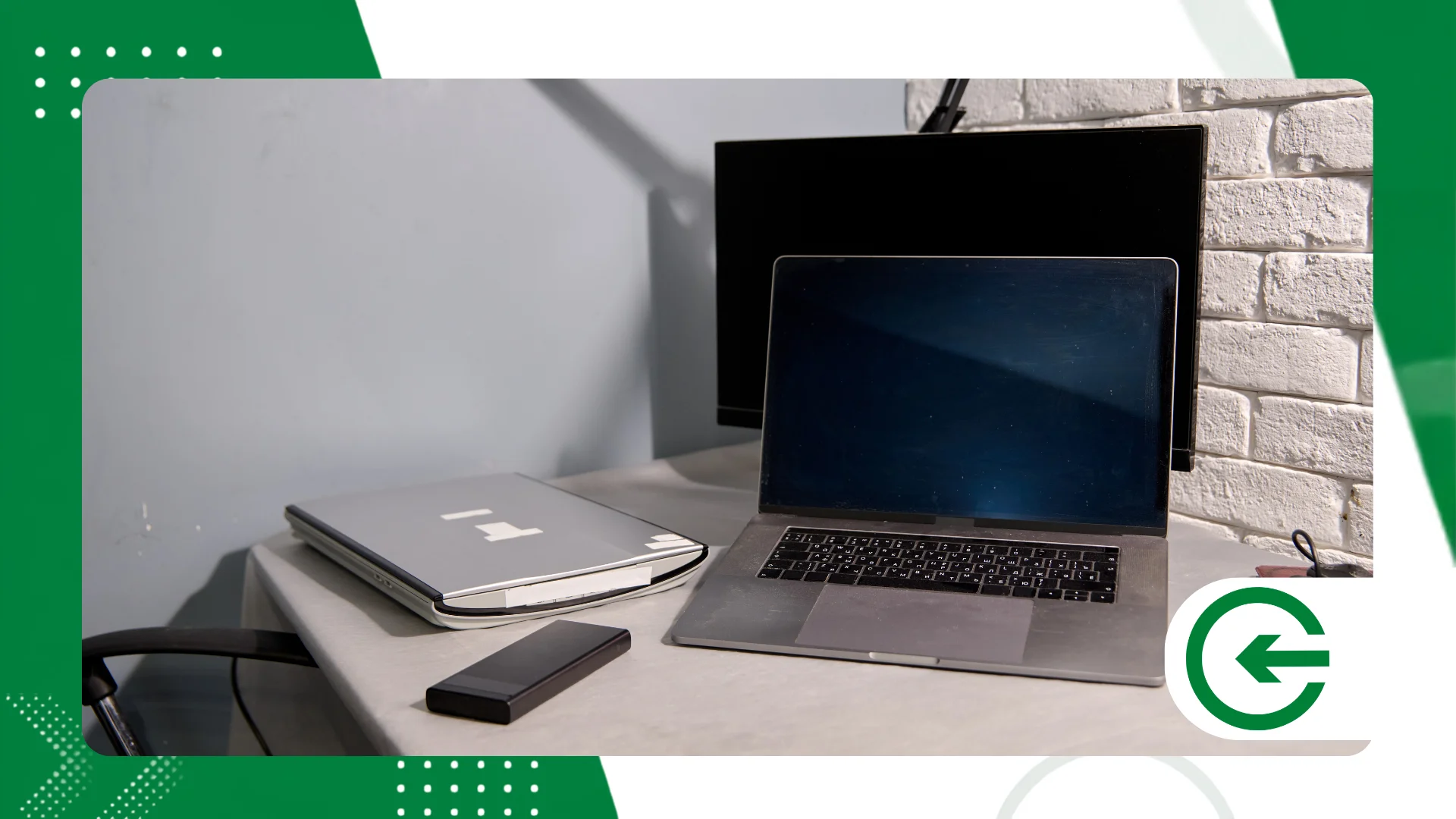
Switch windows using Alt+Tab Doing this dozens of times per minute consumes an invisible but exhausting cognitive effort.
advertising
When you open a large spreadsheet alongside a client's email, or write code while keeping the technical documentation visible in the adjacent panel, the dynamic changes completely.
The information is right there, in plain sight, without you needing to pause your train of thought to hunt for a lost tab.
There's something liberating about eliminating visual squeezing. In video calls, for example, you can keep the camera and participants on your laptop screen while you master the presentation or take notes without covering anyone's face.
This spatial separation reduces silly errors caused by blind typing or momentary distraction when switching programs.
The great advantage of this approach is preserving mobility when you need to attend an in-person meeting, while maintaining the power of a desktop computer on your office desk.
The operating system recognizes the extended area almost instantly, allowing you to move the pointer between screens without any hiccups or complicated configurations.
How do ergonomics and visual health improve with a second monitor?
Working hunched over the low screen of a laptop forces the cervical spine to bear a disproportionate load for hours on end. The result of this poor design often manifests as shoulder pain and neck stiffness at the end of the workday.
To the using an external monitor with the laptopThis allows you to align the top of the display with your eye line, forcing an upright and natural posture.
Your eye health will thank you for the change. Larger panels come with decent anti-glare treatments and refresh rates that smooth cursor movement, relieving eye strain.
You stop frowning while trying to decipher tiny fonts or compressed details in the software.
Occupational health recommendations insist that preventing repetitive strain injuries begins with the positioning of equipment.
To fully understand the correct height and distance adjustments for your desk, it's worth consulting the ergonomics guide from [website/source name]. Occupational Safety and Health Administration, a global benchmark in workplace safety.
Why do screen resolution and size make all the difference?
When choosing an additional monitor, the combination of panel size and resolution directly determines your reading comfort and the amount of information visible without needing to zoom in.
Larger screens with low pixel density can make text look jagged and tiring on the eyes, while a 27-inch panel with 4K resolution delivers crystal-clear clarity, ideal for those who spend long hours analyzing spreadsheets, reading lengthy documents, or editing detailed images.
In addition to its sharpness, the display's aspect ratio completely reconfigures its spatial organization on the work desk.
Ultrawide (21:9) monitors, for example, allow you to display three full-size windows side-by-side without the physical border division that occurs when using two separate screens.
This continuous visual arrangement maximizes your attention, eliminating distractions and delivering a truly expansive usable area for your daily life.
++ How to use Wi-Fi smart plugs to save energy
What connections and cables are needed to turn on the monitor?
Understanding your computer's ports before buying a monitor avoids the frustration of facing a black screen or wasting money on bad adapters.
Modern laptops typically come with standard HDMI outputs or USB-C ports with DisplayPort Alt Mode support. Carefully reviewing the laptop's specifications is the first step to avoid choosing the wrong cable.
USB-C technology with Thunderbolt has simplified the chaos of wires on the desk in an impressive way.
A single cable transmits high-definition video, exchanges data with peripherals, and even supplies power to recharge the laptop battery.
The countertop stays clean and you eliminate the need to carry your computer charger around.
| Connection Type | Maximum Supported Resolution | Power Delivery | Primary Usage Profile |
| HDMI 2.0 / 2.1 | 4K at 60Hz / 120Hz | Not supported | Office, studies and games |
| DisplayPort 1.4 | 8K at 60Hz | Not supported | Graphic design and high fidelity |
| USB-C (Alt Mode) | 4K at 60Hz | Yes (usually up to 65W/100W) | Workstations and ultrabooks |
| Thunderbolt 4 | 8K or 2x 4K at 60Hz | Yes (up to 100W or higher) | Extreme performance and multiple monitors |
Choosing the right cable ensures that the refresh rate isn't capped and that the colors don't suffer from distortion.
Generic, uncertified cables tend to cause annoying flickering and sudden image glitches. Treating the cabling with the same attention you give to the screen is the secret to a stable setup.
++ Smart air quality monitors are gaining ground.
How do you compare the investment between additional screens and larger laptops?

Switching to a 17-inch laptop in search of more visual space is often an expensive trap.
Besides paying a hefty price for the larger chassis, you end up with a heavy, cumbersome device that's difficult to transport and has a battery that drains quickly.
Laptop screens, no matter how large, never offer the same spatial comfort as a dedicated desktop display.
Financial calculations clearly favor buying the peripheral separately. A 24- or 27-inch monitor delivers an absurdly superior workspace for a fraction of the price you'd pay to upgrade to a niche laptop.
There is also the issue of lifespan. While laptops become outdated or have motherboards burn out in just a few years, a good monitor will last through generations of computers intact.
When the time comes to upgrade your laptop, the panel will remain firmly on your desk, preserving your investment for much longer.
What type of external screen is ideal for your usage profile?
Making the right choice requires looking at your work without being swayed by expensive features you'll never use.
If your day revolves around spreadsheets, browsing, and word processing, a 24-inch IPS panel with Full HD resolution delivers plenty of sharpness without demanding a penny more from your graphics card.
Anyone working with image editing, video, or design needs to take it a step further and focus on color space.
In these cases, screens with wide sRGB coverage and DCI-P3 fidelity ensure that the color seen on the screen is exactly the color printed or delivered to the end customer, avoiding unpleasant rework.
- Office tasks: 24-inch Full HD screens with 75Hz offer the ideal balance between low price and comfortable viewing.
- Creation and design: 27-inch 4K IPS panels with factory calibration are essential for color accuracy.
- Games and fluidity: Monitors with 144Hz or higher refresh rates offer extremely smooth image transitions and shorter response times.
- Heavy productivity: 34-inch ultrawide formats replace two smaller monitors on the desk in a much more elegant way.
Setting priorities before purchasing avoids unnecessary expenses on excessive refresh rates for those who only read emails. The right size and resolution depend directly on what you do during your eight-hour workday.
++ Benefits of connecting your cell phone to a TV
Conclusion
Gaining more space on your work desk isn't just an aesthetic whim; it's a direct impact on how you handle your daily tasks.
The transition to an expanded visual area reduces the friction of switching programs, decreasing silly mistakes and cutting mental fatigue at the end of the day. The perception of agility becomes clear within the first few hours of use.
Preventing back pain and eye strain eliminates any doubt about the validity of the investment.
Ergonomics is not a luxury, and adjusting the screen height to work with your head upright provides physical relief that pays for itself in just a few weeks.
With the simplicity of modern single-cable connections, the installation process has gone from being a technical nightmare to something trivial.
To check official power consumption and energy efficiency specifications for these displays, you can consult the directory of... Energy Star, which validates international sustainability and consumption standards for electronics.
Frequently Asked Questions (FAQ)
Does using an external monitor drain laptop battery faster?
Continuous image transmission puts a bit more strain on the graphics processor, increasing power consumption. However, if you use USB-C connections with Power Delivery, the monitor itself powers the laptop, eliminating this problem.
Can any laptop work connected to an external monitor?
Virtually any model released in recent years has enough power to handle a second screen for office tasks. You just need to select the native resolution supported by the machine's graphics chip.
Is it better to use two external monitors or the laptop screen plus an external screen?
It depends on the size of your workspace and your work dynamics. Keeping your laptop open to allow the corporate chat to be visible while using the larger screen for the main task is an excellent solution and doesn't cost extra.
Does an external monitor slow down the operating system?
Not in common use. The work required to render two screens in office tasks is negligible for current processors, impacting speed only in heavy 3D software or demanding games.
