
Tips for backing up important files without spending money.
Know how back up important files Doing this completely free of charge is the crucial step to ensuring the security of your most valuable data without affecting your monthly budget.
ADVERTISING
Losing essential documents, priceless photos, or work files is a frequent nightmare. The good news is that there are safe and affordable methods to avoid this type of digital disaster.
In this comprehensive guide, you'll discover effective strategies, free tools, and practical routines to easily protect your entire digital collection, keeping your information safe at all times.
Summary
- Why create a cost-free data protection routine?
- What are the best free cloud services?
- How can you use physical media that you already own?
- What is the 3-2-1 strategic rule adapted to a zero budget?
- What serious mistakes should you avoid when saving documents?
- Comparison of the best free storage solutions
- Final thoughts on digital security
- Frequently Asked Questions (FAQ)
Why create a cost-free data protection routine?
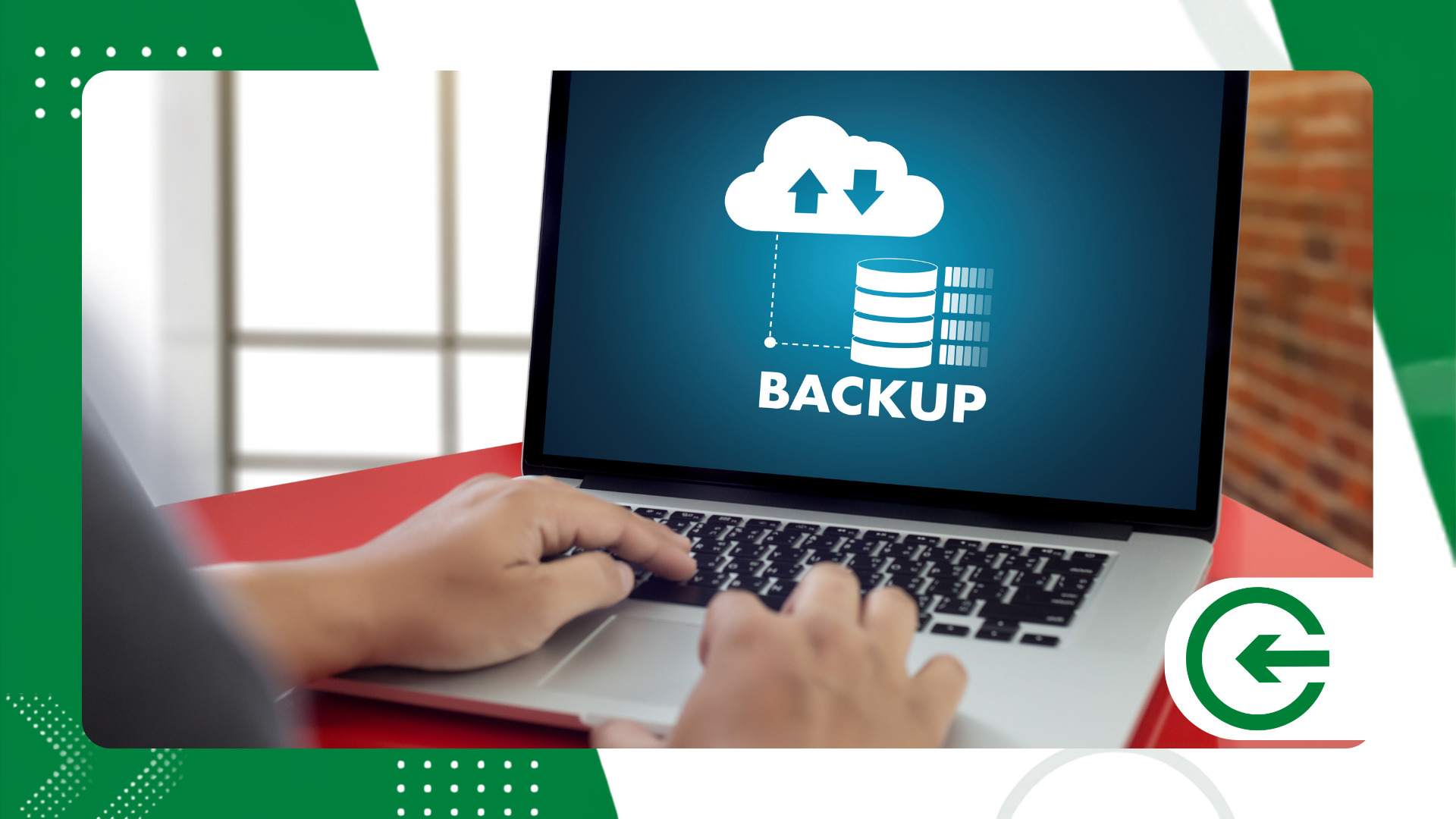
Accidental data loss occurs due to physical hardware failures, malicious software attacks, or simple daily carelessness. Preventing these incidents is immensely cheaper and faster than trying to recover corrupted files later.
advertising
Currently, several global platforms offer robust free plans with high encryption standards. Utilizing these readily available frameworks allows you to build an efficient and extremely secure defense system without spending a single cent.
Organizing your vital files in protected environments brings peace of mind to your daily and professional routines. With just a few clicks and simple settings, you ensure the continuous preservation of your digital memory.
What are the best free cloud services?
Cloud storage providers lead the options for back up important files with automatic synchronization and quick access from any internet-connected device.
Platforms like Google Drive, Microsoft OneDrive, and Proton Drive offer quite generous initial free storage space. Proton Drive, for example, stands out by offering end-to-end encryption focused on user privacy.
- Google Drive: It offers 15 GB of free storage natively integrated with document and photo tools.
- Microsoft OneDrive: It offers 5 GB of storage space with excellent integration into the Windows ecosystem.
- Proton Drive: Focused on maximum security with advanced encryption and a free starter plan.
- MEGA: Offers up to 20 GB of free storage for new users with a focus on privacy.
Combining different services allows you to organize your files by category, such as photos on one platform and documents on another. This strategic division multiplies your available space without requiring any payment.
To fully understand how data security and privacy are managed globally by large infrastructures, consult the official guidelines on the portal. NIST Cybersecurity Framework.
How can you use physical media that you already own?
In addition to cloud solutions, you can back up important files reusing old flash drives, old external hard drives, or even memory cards that are stored in your drawers.
Even devices with limited capacity are perfectly adequate for storing static copies of text documents, budget spreadsheets, or scanned certificates that do not undergo constant changes.
Formatting these media with modern file systems and keeping them disconnected from the computer after copying creates valuable physical isolation against potential attacks from ransomware-type malicious programs.
What is the 3-2-1 strategic rule adapted to a zero budget?
The well-established 3-2-1 security rule dictates that you should maintain three copies of your data, on two different types of media, with one of them stored outside your usual workplace.
You can apply this rigorous concept without cost by using one copy on your main computer, another copy on a USB drive, and a third version saved in a secure cloud storage service.
This combination ensures complete resilience against local mechanical failures, equipment theft, or problems with online servers. Intelligent redundancy is the real secret to keeping data permanently protected.
What serious mistakes should you avoid when saving documents?
The most common mistake when trying back up important files It's about creating copies and never verifying whether the saved data remains readable, intact, and fully accessible when needed.
Another common mistake involves keeping external media constantly connected to the computer. If the operating system is infected by a virus, its backup will also be completely compromised.
Finally, avoid naming files generically or confusingly. Create folders organized by date or clear categories to facilitate quick and efficient location of your vital documents in emergencies.
++ Data protection: How to reduce your exposure to data breaches.
Comparison of the best free storage solutions
Below is a detailed comparison of the main free tools and methods currently available to protect your personal and professional data with complete efficiency.
| Provider / Method | Free Space | Security Level | Ideal for… |
| Google Drive | 15 GB | High (2FA Authentication) | Daily documents and photos |
| MEGA | 20 GB | Very High (Zero-Knowledge) | Large files and projects |
| Proton Drive | 2 GB to 5 GB | Maximum (State-of-the-Art Cryptography) | Confidential data and contracts |
| Old Physical Media | Variable | High (Offline Isolation) | Static backup copies |
Analyzing the capabilities and protection level of each option helps in choosing the ideal tool for each file type, ensuring maximum effectiveness without exceeding the daily budget.
++ Bluetooth LE Audio: What's changing in modern wireless headphones today?
How can I automate backups without spending a single penny?
Creating a manual routine often fails precisely when memory fails, which is why setting up automatic routines is a game-changer.
The native ecosystem of tools in Windows and macOS offers built-in features for scheduling background backups without requiring the purchase of third-party software.
By integrating these schedules with local directories synchronized to the cloud, you transform the protection of your data into an invisible habit, immune to the forgetfulness of everyday life.
How can I automate saving routines without spending any money?
Automation eliminates the human oversight factor, creating a continuous flow of protection for your digital assets. Native Windows and macOS utilities offer advanced scheduling at no additional cost.
Modern operating systems include tools like File History and Time Machine for performing background backups. Setting up these features takes only a few minutes and ensures constant updates.
Open-source software offers advanced encrypted synchronization capabilities between local and remote directories. Intelligent use of these applications creates efficient private networks without requiring monthly subscriptions.
Creating scheduled routines for times when your computer is less frequently used prevents interruptions to your daily workflow. This way, your files remain updated in a completely imperceptible and secure manner.
Many people believe that automated systems require in-depth technical knowledge, but current interfaces are intuitive. Just a few clicks are needed to define which priority folders should be synchronized daily.
++ Who invented the computer mouse and what did the first model look like?
Final thoughts on digital security
Securing your digital life is an ongoing process that requires more discipline and organization than large financial investments from the user.
By implementing the tips presented and back up important files Periodically, you build a solid barrier against unforeseen events, accidental losses, and hardware failures in your daily life.
Start today by separating your vital documents and choosing the best combination of cloud and physical media. Your future digital security depends directly on the preventative actions you take now.
To learn more about universal best practices for digital awareness and advocacy, visit the official website of [organization name]. Cybersecurity and Infrastructure Security Agency.
Frequently Asked Questions (FAQ)
How often should I back up my files?
Ideally, work files should be updated daily. Personal documents and photos can be saved weekly or bi-weekly, depending on your daily volume of data creation and modification.
Is it safe to store personal data in free cloud storage?
Yes, provided you choose reputable providers and enable two-step verification on your account. For highly confidential files, use compression tools protected by a strong password.
What is the difference between synchronizing and backing up?
Synchronization instantly mirrors changes between devices, deleting the file in the cloud if it is deleted on the PC. Backup generates a preserved copy that remains intact regardless of local actions.
