
How to check which devices are connected to your Google account
To know Check which devices are connected to your Google account. This is the first step in ensuring the integrity of your personal data and keeping intruders completely away from your digital information.
ADVERTISING
The proliferation of screens in our daily lives has created a kind of invisible trail that we rarely audit with the necessary care.
Frequent access monitoring has become a mandatory practice to prevent silent intrusions and unauthorized downloads.
In this guide, you will learn how to audit them on different platforms, quickly end suspicious sessions, and apply advanced settings to effectively protect your profile in 2026.
Summary
- How to access the device panel on your computer
- How to check active sessions on an Android or iPhone mobile phone.
- What to do when you identify an unknown device.
- Quick Action Table for Security Management
- How to remotely remove a connected device
- How to protect your Google account against unauthorized access.
- Frequently Asked Questions (FAQ)
How do I access the management panel on my computer?
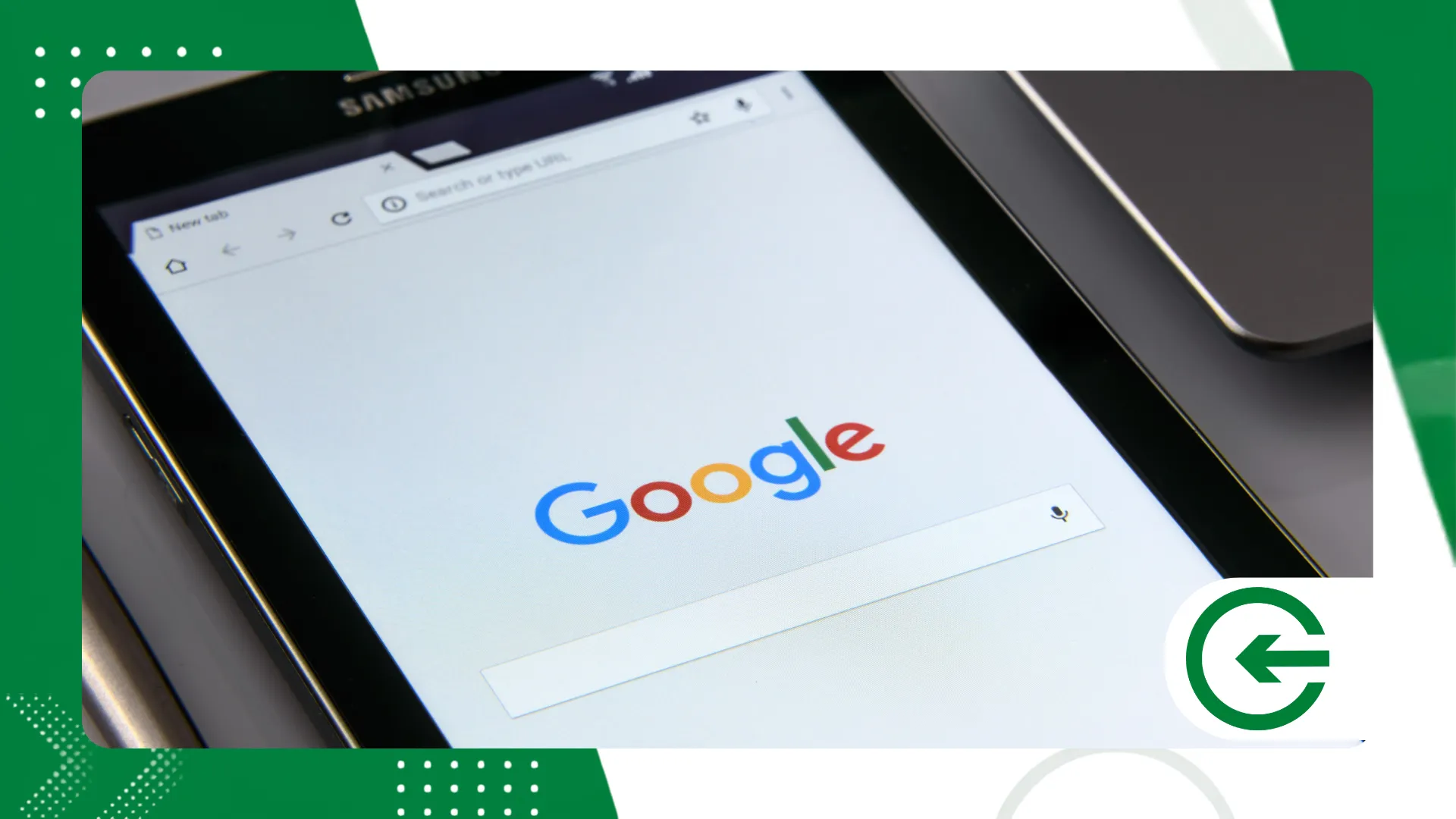
Browsing via computer offers the most detailed and comfortable view of active connections on the platform.
advertising
There's something revealing about viewing this list on a large screen, where each active browser and synchronization time takes on clearly defined outlines.
To begin the verification, open your preferred browser and access the central portal. Google AccountLog in using your primary email address and your registered password.
In the left-hand menu of the screen, click on the tab titled Security. This section centralizes privacy records, saved passwords, and recent alerts issued by the ecosystem's algorithms.
Scroll down the page until you find the section called Your devices. In this panel, you will see icons corresponding to the computers, mobile phones, tablets, and Smart TVs that are actively connected.
How can I check if other phones are connected on Android or iOS?
Mobile verification brings verification down to the speed of everyday life. In both the Android and iOS ecosystems, the process is straightforward and requires only a few taps.
On Android devices, open the operating system's Settings app. Scroll down the list of options and tap the tab related to the company's integrated services.
If you are using an iPhone or iPad, open the Gmail or Google app. Tap your profile picture located in the upper right corner and select the same management option.
Slide the tabs at the top until you find the tab dedicated to digital security. Scroll down to see the card with information about all paired computers and devices.
You will be able to Check which devices are connected to your Google account. directly from your smartphone screen.
What details should you look for when checking a device?
Access logs are often misinterpreted by those simply looking for a familiar name. Small pieces of metadata hidden in the interface reveal much more about the legitimacy of a connection than the device model.
By clicking on any item in the list, the system will display the date of the first synchronization. It also shows the last time the device was active on the servers.
Note the approximate geographic location and IP address associated with the connection. Remember that connections via mobile phone networks often point to neighboring cities due to carrier routing.
Check the type of browser or application used for the recent login. If you only use Chrome and an unknown browser appears, raise an alert.
Also check for the presence of third-party applications that have been granted access permission. Services that were previously authorized may continue to maintain active sessions without your knowledge.
++ Apps that help you remember to take your medication at the right time.
Quick Action Table for Security Management
To facilitate your decision-making during the audit, please refer to the table below, which summarizes the findings, impacts on the system, and immediate actions you should take.
| Device Status | Risk Identified | Recommended Action | User Impact |
| Old Appliance (Own) | Low | Remote Logout | Removes access and requires a password for subsequent use. |
| Unknown Browser | Average | Disconnect and Change Password | Ends sessions and invalidates old tokens. |
| Strange Location / Suspicious IP | High | Disconnect + Enable 2FA | Requires immediate two-step verification. |
| Inactive Session (> 28 days) | Low | Revoke Permissions | Clears the connection history list. |
How do I disconnect an unknown device remotely?
When encountering a suspicious login, the reaction needs to be immediate. Remote termination revokes the authentication token and cuts the umbilical cord that connects the attacker to your information.
Within the list of recognized devices, click or tap on the name of the suspicious device. The panel will open a dedicated screen detailing all recorded activities.
Locate the button The Logout or Disconnect option is highlighted in the main menu. Click on it and confirm your decision in the security dialog box that will appear.
From that second onward, that device will lose access to the Gmail inbox, photos, and drive. Whoever has possession of the device will need to enter the password again to log in.
++ How to see everything that's draining your phone's battery — and stop the culprits.
What should I do immediately after removing a suspicious connection?
Taking down the session is only half the job when the main credential may have been leaked. Taking additional containment measures ensures the complete restoration of your account's security.
Your first step should be to immediately change your access password. Create a unique combination containing uppercase letters, lowercase letters, numbers, and special symbols.
Next, download backup codes and review your recovery methods. Keep an up-to-date mobile phone number and a functional alternate email address on your platform.
Access the menu of Security Checkup provided by the company's own dashboard. This guided scan detects vulnerable saved passwords and applications with unnecessary privileged access.
Finally, review your email forwarding rules to check for malicious filters. Hackers often create invisible rules to divert bank verification messages without your knowledge.
How can I protect my account from unauthorized access?
Building barriers before an intrusion happens saves the hassle of managing compromised data. Modern digital security works in layers, and relying solely on a traditional password is an unnecessary risk.
Two-step verification is the most robust tool to prevent unauthorized access. Activate this feature to require physical confirmation on your mobile phone every time you log in.
Give preference to using physical security keys or dedicated authenticator apps. Avoid relying exclusively on sending codes via SMS messages, which are vulnerable to interception.
Whenever Check which devices are connected to your Google account.Take this opportunity to review permissions. Remove access for old games and web tools that you no longer use.
Avoid logging into public computers in internet cafes or hotels without incognito mode. If you need to use them, actively log out and clear your browser history.
++ How to properly configure emergency shortcuts on your mobile phone.
Frequently Asked Questions (FAQ)
Can I find out the exact location of a connected device?
No, the system only displays the estimated geographic location based on the IP address. Mobile phone networks usually point to the operator's headquarters, not your street.
What does it mean for a device to be listed with the name "Linux" or "Android"?
This happens when the platform identifies the operating system but not the brand of the device. Smart TVs, TV set-top boxes, and older computers are often labeled this way.
Will disconnecting the device delete my saved files?
It does not delete local files stored in the internal storage of the disconnected device. The action only stops the synchronization of emails, cloud photos, and Drive documents.
Why does a phone I've already sold still appear on the list?
Devices remain listed for up to 28 days after the last disconnection. You can click on the item and select the option to manually remove it from the history.
Does two-step verification prevent new devices from joining on their own?
Yes, the feature requires owner confirmation on a trusted, registered device. Without this approval on the mobile phone, no new user can complete the login process.
Maintaining control over who accesses your digital ecosystem requires consistency, not paranoia. For official technical support or to consult updated information security guidelines, visit the official documentation at [website address]. Google Help Center.
