
How to use Life360 to create family circles and alerts.
O Life360 It entered the routine of Brazilian homes through the most common door possible: the weariness of sending "Did you arrive safely?" ten times a week and staring at the two gray lines from the messenger without a response.
ADVERTISING
With over 107 million active users worldwide in 2026 — boasting ratings of 4.8 stars on the App Store and 4.5 on Google Play — the app occupies a curious space in recent digital culture.
We've traded the hurried payphone calls of the 1990s for a silent map in our pocket. But, unlike what many people imagine when downloading the tool for the first time, the real value lies not in monitoring anyone, but in transforming diffuse anxiety into practical agreements.
In this guide, you'll set up your family group from scratch, adjust virtual fences that actually work without filling your phone with false alarms, and understand where care ends and invasion of privacy begins.
Summary
- How do I create a family circle step-by-step in the app?
- Who can administer the circle and manage member permissions?
- How do I set up location alerts for arrivals and departures?
- What other smart alerts protect your family every day?
- Which plan offers more features for circles and alerts in 2026?
- Where can I adjust my phone's permissions to avoid map errors?
- Is it worth centralizing family security?
- Frequently Asked Questions about crop circles and warning signs (FAQ)
How do I create a family circle step-by-step in the app?
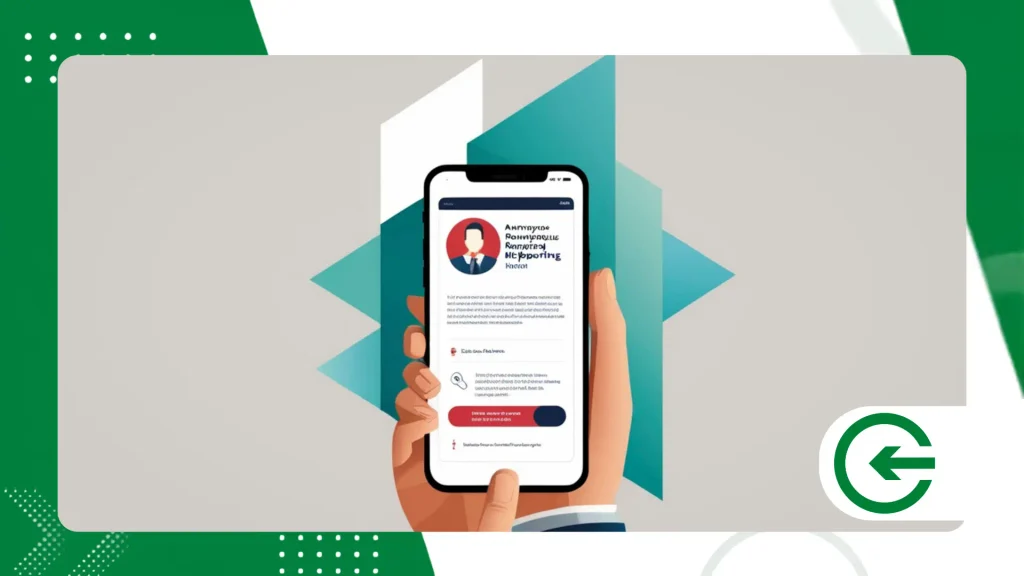
The process begins in your phone's official app store, whether it's Android or iPhone, by downloading the application and filling in the basics: name, email, and a phone number that receives SMS messages instantly. No endless forms needed.
advertising
Once you validate the confirmation code, the map opens and, right at the top of the screen, the group selector appears, waiting for your first command.
Tap here to create a new space and choose a name that makes sense to everyone. “Silva Family”, “Grandma’s House” or “College Group” work better than generic labels.
The moment you confirm, the Life360 It generates a six-character alphanumeric code and a ready-to-follow invitation link via WhatsApp.
Here's a detail that's often misunderstood: anyone with this active code can request entry to your map.
Therefore, it's best to treat the code like the key to an electronic gate, avoiding throwing it around in huge groups of distant relatives where half the people barely speak to each other.
On the other end, the person receiving the invitation only needs to install the app, choose the option to join an existing group, and type in the six characters.
A profile picture is very helpful for quickly reading the map, especially when there are more than four people moving around the city at the same time.
If your request is for a specific event—a weekend trip with aunts, uncles, and cousins or a festival in another city—don't mix everything into the main household group.
Use the Temporary Circle. It's created with a programmed expiration date and time for opening and closing the sharing, avoiding the classic awkwardness of having to kick someone out of the group after the trip ends.
Separating environments also saves emotional energy. You can maintain a fixed circle for those who live under the same roof and another separate one just to accompany elderly parents, switching between them with two taps at the top of the screen.
Who can administer the circle and manage member permissions?
Whoever creates the group automatically assumes the role of primary administrator, with full power to approve invitations, remove participants, and edit any saved address.
In the settings, this role can be shared with another adult — which makes perfect sense in homes where both parents share the children's school routine without relying on a single device to set rules.
Regular members have a more streamlined experience: they see the map in real time, can register their own favorite addresses, but can only delete or edit the points they themselves created.
It's a simple division that prevents accidental changes to someone else's school or work address.
There's also a technical limitation that many people only discover when they switch phones. Life360 doesn't allow simultaneous login with the same account on two different devices. If you log in to the tablet using the same email and phone number as your mobile phone, the system disconnects the phone immediately.
Far from being a flaw, this rule prevents the map from showing you standing in your living room while your wallet is already on its way to the market.
But no technology can solve the discomfort of feeling watched. There's something unsettling about the idea of transforming affection into constant telemetry, and ignoring this friction often sabotages the use of the app within a few weeks.
Any member can pause their own location sharing in the privacy settings.
Instead of viewing the break as rebellion — especially in the case of teenagers — it's worth having a conversation before sending the invitation and making it clear that the map is for emergencies and logistics, not for auditing every coffee shop you go to on the corner.
How do I set up location alerts for arrivals and departures?
Location alerts work through virtual fences: you draw an invisible circle around an address and receive an alert on your phone whenever someone crosses that line. To set up your first one, tap the Locations icon just below the map and choose to add a new point.
Name the location directly — “School”, “Office”, “Gym” — and manually adjust the pin on the map. Relying solely on automatic street name search sometimes places the marker in the middle of a wide avenue or in the next block, delaying the notification from being sent.
Next, define the radius of the virtual fence. A classic beginner mistake is shrinking this area too much, thinking it increases accuracy. In practice, tiny fences suffer from any GPS fluctuation inside commercial buildings, making the system think the person left and returned three times in the same afternoon.
The opposite can also cause problems: if you overlap the radius of two nearby locations—like your child's school and the bakery across the street—Life360 gets confused and sends incorrect alerts.
After saving the address, tap the bell icon next to the name to turn general notifications on or off. The real fine-tuning, however, is done within each location's profile, using the individual Arrivals and Departures buttons next to each family member's name.
That's where the app stops being noisy and starts being useful. You can receive an alert every time your child arrives at school at seven in the morning, but completely silence notifications when your spouse passes by the same street on their way to the subway.
If you want to check technical details on how these fences behave on each device, it's worth consulting the... documentation of smart notifications on the platform.
With the free account, you can register up to two locations with automatic alerts per group. For most households, home and school — or home and work — already covers the core of the routine without costing a cent.
What other smart alerts protect your family every day?
Not every unexpected event happens at the doorstep of a saved address. With that in mind, the app includes smart notifications focused on minor urban crises that often generate unnecessary panic when no one has the context.
The most underrated of these is the Low Battery alert. It automatically notifies the group as soon as a member's phone drops below 10% of charge.
Anyone who has ever spent two hours trying to talk to a child or an elderly parent in the late afternoon knows the relief of discovering that the problem was simply a lack of power outlets, and not an accident on the way.
Another feature that sparks great conversation at the dinner table is Safe Driving. At the end of each car trip, Life360 sends a summary with the distance traveled and the maximum speed reached.
For young drivers who have just gotten their license, knowing that the journey generates an objective record often curbs excessive speeding much more effectively than repeated lectures in the garage.
There is also the weather layer: in partnership with AccuWeather, the system sends out severe weather alerts whenever a severe storm or extreme condition approaches the region where anyone in your circle is located.
You can turn each of these alerts on or off in the Smart Notifications tab, within Settings, keeping only what makes sense for your city's needs.
++ How to use apps to find nearby gas stations
Which plan offers more features for circles and alerts in 2026?
The choice between sticking with the free version or subscribing to a paid plan rarely comes down to "wanting more technology," and almost always comes down to the logistical complexities of your week.
If the family moves between two or three fixed points and the only goal is to know if everyone got home at night, paying a monthly fee is a waste of money.
On the other hand, routines involving multiple drivers, extracurricular courses scattered throughout the city, or accompanying elderly people who drive alone often quickly run up against the limit of two free parking spaces.
In these scenarios, the leap in utility of Life360 appears in the extended history and automatic collision detection.
Below are the actual features available in the plans aimed at the Brazilian public in 2026:
| Main feature | Free Plan | Silver Plan | Gold Plan |
| Location history | 2 days | 7 days | 30 days |
| Location alerts | Up to 2 locations | 5 unlimited locations | Unlimited |
| Management report | Family summary | Family summary | Individual and family |
| Accident detection | Not included | Included | Included |
| SOS alert button | Included | Included | Included |
Looking at the numbers, the Silver plan is usually the break-even point for average families: five virtual fences cover home, school, work, and two more recurring addresses, in addition to unlocking accident alerts.
The Gold plan makes real sense when you have more than one car in the garage and need to view trips for up to thirty days with individual driving details.
Here's a financial detail that few people notice at first: just one person needs to subscribe for all members of that same circle to receive the unlocked benefits.
Even so, it's worth taking advantage of the trial period before signing up for the annual plan, observing in practice whether the family actually checks the history or if the basic alerts are enough.
++ Brazilian driver's license: how to share your car registration document via the app.
Where can I adjust my phone's permissions to avoid map errors?
Almost every complaint about "the map froze" or "the alert arrived half an hour late" is not related to the app's servers, but rather to the silent war that iOS and Android wage to save battery power.
Modern systems love to put background apps to sleep, and a sleeping locator becomes just an ornament on the screen.
On your iPhone, go to Settings, find the app in the list, and change the location permission to "Always." Leaving it on "While Using" prevents logins and logouts from being recorded when the phone is locked at the bottom of your bag.
In the same menu, keep the "Precise Location" switch turned on; without it, the device will only provide a rough blur of the neighborhood, rendering any virtual fence useless.
On Android, the path goes through Settings, Applications, and Location Permissions, where you should choose "Allow all the time".
The next step is equally crucial: access the battery options on the Life360 and select unrestricted usage, removing the app from the automatic power optimization list that brands like Samsung, Xiaomi, and Motorola aggressively apply.
Finally, keep Wi-Fi and Bluetooth turned on even when you're away from home. Even without connecting to any network, your phone uses the detection of nearby antennas and routers to triangulate your position inside shopping malls, garages, and enclosed buildings where pure satellite signals often fail.
++ How to set up Google Authenticator on a new phone today
Is it worth centralizing family security?
When properly calibrated, location sharing works like a discreet window open to your home kitchen: you don't stare at it all day, but you know you can take a quick look when the clock passes the agreed-upon time and city traffic jams.
The secret to making the system last for months without causing arguments lies not in activating every possible notification, but in filtering out the noise.
Start with a single circle, register only the two addresses that really matter each week, adjust the battery permissions for each device, and agree on clear privacy rules with those sharing the map.
If you want to compare the updated limits in detail before deciding between the free version and the paid packages, check out the... Official page for plans in Brazil..
From then on, technology steps aside and gives the family back what it was really looking for from the start: fewer interruptions on their cell phones and more peace of mind at the end of the day.
Frequently Asked Questions about crop circles and warning signs (FAQ)
How many people can I add to a single family circle? You can invite multiple close family members to the same group in... Life360 without charging an extra fee per user, keeping the map unified even on the free account.
The practical limit is usually much more related to the visual clarity of the map than to a rigid barrier for immediate relatives.
Does the app notify you when someone turns off GPS or pauses location services? Yes. The map doesn't pretend the person is standing where they aren't: it displays a clear warning informing you that location permissions have been disabled on the device or that the user has manually paused sharing.
Can I use the same account on two phones at the same time? No. As soon as you log in on a second device using the same credentials, the platform ends the session on the previous device.
This lock exists precisely to prevent two cell phones from competing for the same person's location and triggering false arrival and departure alerts.
Do location alerts work without internet on the family member's cell phone? Not in real time. The device's GPS can identify where the person is, but the cell phone needs an active connection via mobile data or Wi-Fi to send this coordinate to the servers and trigger the notification on the other family members' phones.
